

If you own a business website, you have probably asked the same question at least once: what do visitors actually do when they land on my site? Do they find the phone number? Do they scroll to the bottom? Do they click the contact button — or leave without clicking anything?
Most small businesses never get a clear answer to that. Analytics tools show you traffic numbers, but numbers don't tell you what went wrong. That's where Microsoft Clarity comes in — and the best part is that it is completely free, no paid tier, no credit card, no trial that expires.
What Microsoft Clarity Actually Is
Clarity is a free analytics tool from Microsoft that shows you how real people use your website. It is the successor to Microsoft's older free Heatmap service, and today it is one of the most capable visitor-tracking tools available at no cost.
It works with a small script you add to your site (or through Microsoft Tag Manager). From there, Clarity starts recording the way visitors move, click, scroll, and read.
In plain English: Google Analytics tells you how many people came. Clarity tells you what they did.
What You Get for Free
1. Heatmaps
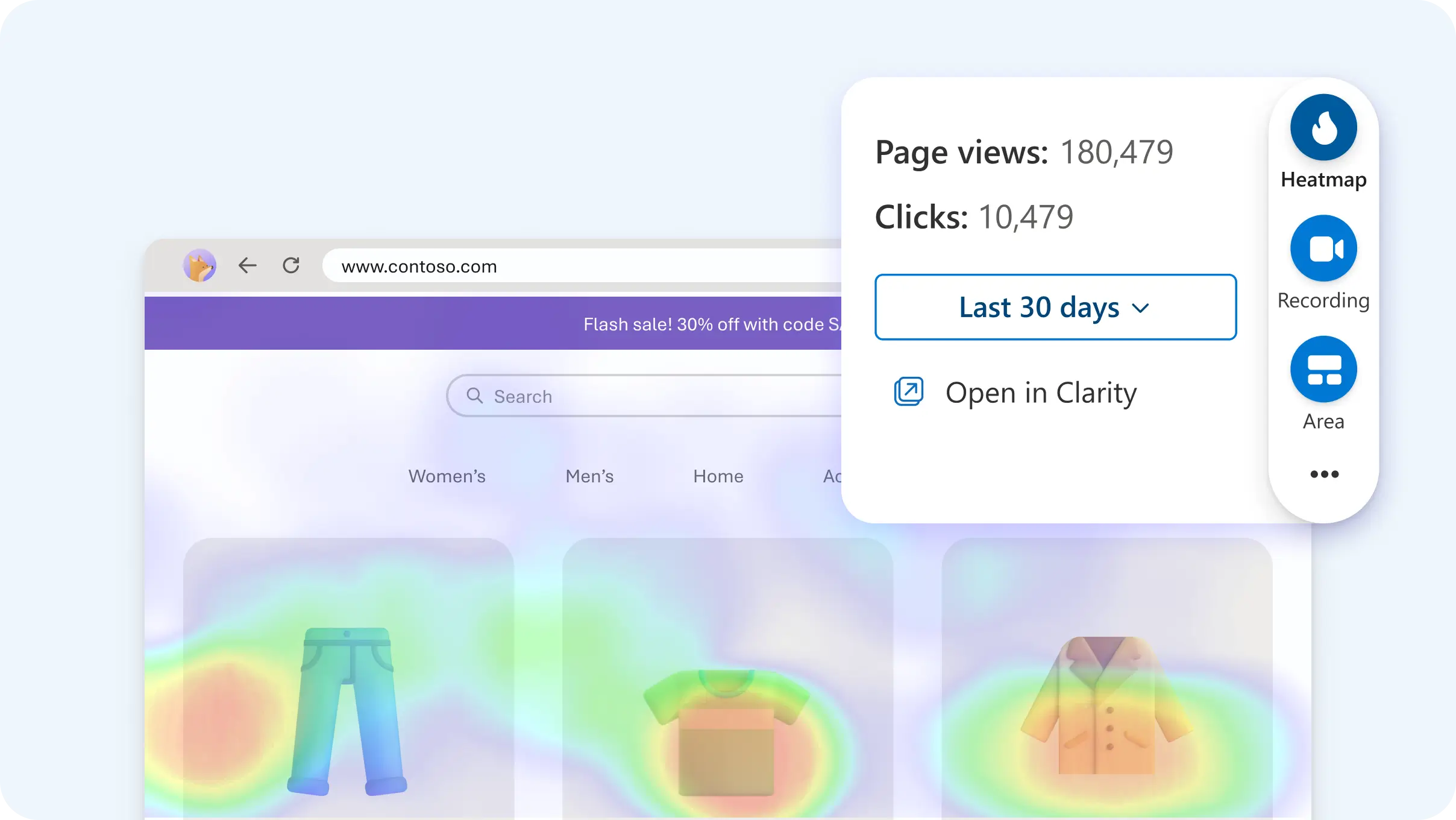
A heatmap overlays your page with color. Warm colors (red, orange) show where people clicked most. Cool areas show where nobody touched.
What to do with it:
- Look for clicks on elements you didn't intend to be clickable
- Find dead zones — a section no one ever reaches
- Compare the heatmap against your most important call to action ("Call Now," "Request a Quote," "Book a Repair")
If your "Book Online" button sits in a cold zone while a navigation link burns red, that is a design problem worth a free fix.
2. Session Recordings
Clarity can record actual visits — a short video of the cursor moving, pages clicked, and scrolling behavior.
What to do with it:
- Watch a customer struggle with a form they cannot fill out
- Spot the page where visitors bounce back to Google
- See which wording confuses people
For a service business, this is invaluable. If five people click "Our Services," then click "Phone & Tablet Repair," then leave without clicking anything, you have found a gap in your service pages — not a mystery.
3. Click Analytics
Clarity ranks every link and button on your site by how often people click it.
What to do with it:
- Find your real "hero" content — often not what you assumed
- Spot confusing navigation labels that get clicked by mistake
- Confirm that your most important CTA is actually the most popular one
4. Rage Click and Dead Click Detection
This is the feature most business owners don't know exists, and it is the fastest way to find broken design.
- Rage clicks: someone clicks the same spot several times in a row — they expect something to happen and it doesn't. This is a broken link, an unclickable element, or a fake button.
- Dead clicks: someone clicks something that goes absolutely nowhere.
What to do with it:
- Fix rage clicks first; they are almost always a genuine bug costing you leads
- Then re-check Clarity a week later to confirm the fix worked
5. Form Submission Tracking
Clarity tells you which forms people actually submit, and — importantly — where they abandon the form halfway through.
What to do with it:
- Shorten forms. Every extra field costs you completed requests
- Notice if a certain field (like "Company size") confuses people
- Put the shortest possible form next to your phone number
6. Session Replay Filters
You don't have to watch every visit. Filter recordings by:
- Pages visited
- Date range
- Traffic source (Google, Facebook, direct, referral)
- Device type
What to do with it:
- Watch 20–30 sessions per month, not 20,000
- Focus on first-time visitors from search — those are your best representation of the "typical customer"
7. SEO Insights
Clarity connects with your search data and surfaces keywords that bring people in but don't convert.
What to do with it:
- Find the search terms that bring visitors to the wrong page
- Build a dedicated page for a high-traffic, low-conversion keyword
- Track it and compare before-and-after traffic
8. Ad and Campaign Tracking (Free via Integrations)
Clarity works with Microsoft Advertising, Google Ads, and Microsoft Tag Manager, which means you can finally see what people do after clicking an ad — not just that they clicked it.
What to do with it:
- Find the ad that gets the most clicks but the fewest phone calls
- See which ad keyword sends people to your most confusing page
- Compare landing pages side by side
9. JavaScript Heatmaps
Clarity tracks dynamic elements — dropdowns, accordions, sliders, interactive menus.
What to do with it:
- Confirm your service accordion actually gets opened
- Check that filters, tabs, and menus work as intended
- Verify that rotating hero sliders aren't hiding your main call to action from visitors
10. Text Analytics
Clarity highlights and analyzes the actual on-page text people engage with.
What to do with it:
- See whether visitors read your "Free Diagnostics" line or skip it
- Test two headlines over time and keep the one that pulls more attention
- Make sure your key benefits are not buried in a paragraph nobody finishes
How to Leverage Clarity for Better Web Design
Installing Clarity is the easy part. The value comes from turning what you see into design changes.
Step 1: Install It Correctly
Add the tracking script to every page — either directly in your template or through Microsoft Tag Manager. On an Eleventy site, it goes in your base layout so it loads once and applies everywhere.
Step 2: Set Up Session Replay Filters
Filter to your main service pages and your contact page. These are the pages that earn money.